Allow users to share a folder (Method 1)
This guide illustrates how to allow multiple users to access a single Windows folder by creating a subfolder
under each user's home folder that maps to that Windows folder.
In order to achieve that, you simply need to create a sub-folder in the virtual file-system underneath the home folder of each user
that all map to the same folder in the Windows file-system.
Firstly, ensure that the users have already been created in the Users panel. In this guide, 'FredJones' and 'JoeSmith' non-Windows users will be used.
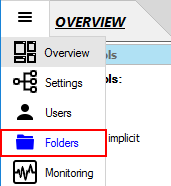
- Select the 'Folders' panel from the side-bar menu.
- Add a Windows subfolder underneath the home folder of each user that maps to the same folder in the Windows file-system.
-
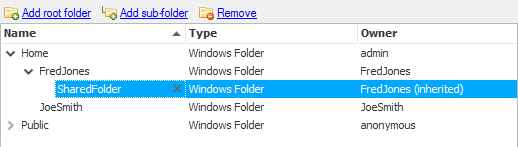
Select the 'FredJones' user from the list then click 'Add sub-folder'.

-
Select the 'Windows Folder' menu item.

-
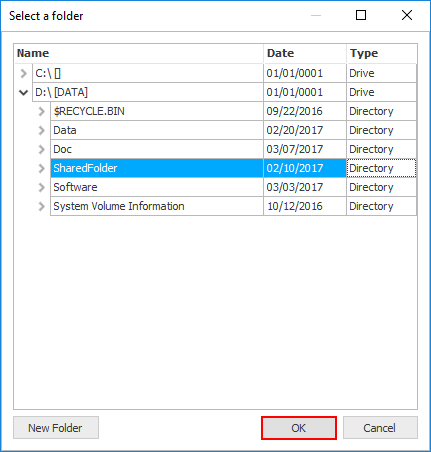
Select a folder which will be shared among the users, e.g. 'SharedFolder'.
You can also create a new one via the 'New Folder' button.
-
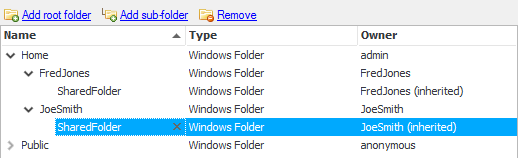
The result will look like this.
-
Repeat steps 2.a top 2.c for 'JoeSmith' user.
-
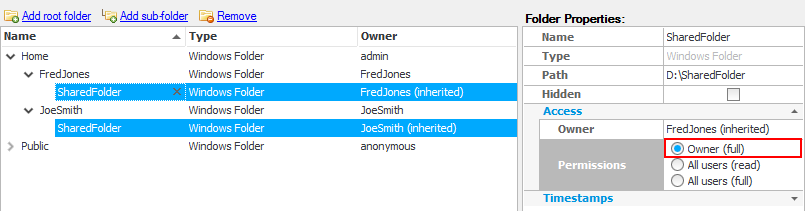
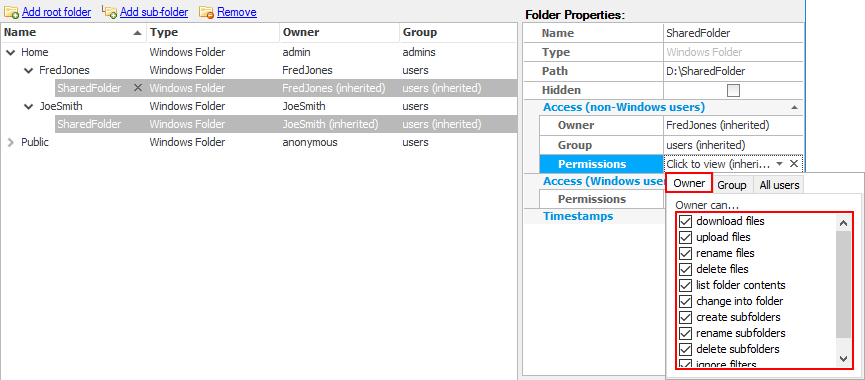
Give full access permissions to the folder to the owner.
-
In Free/Standard edition, select both users then select 'Owner (full)' option in 'Folder Properties' window.
-
In Professional/Enterprise edition, select both users then check all permission checkboxes in the 'Owner' tab.
- Finally, click the 'Apply changes' button at the top right of the CompleteFTP Manager to save the changes.